
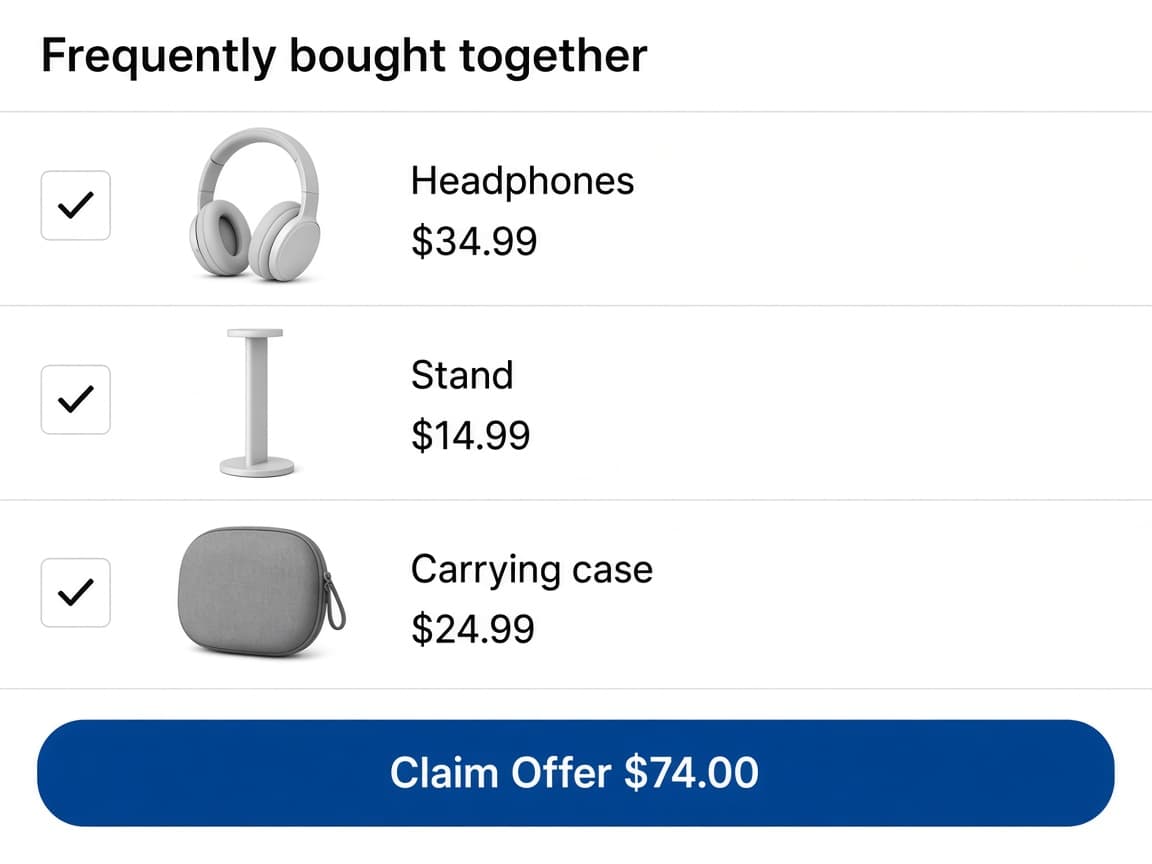
The bundle sits on the product page
Under add to cart the customer sees recommended add-ons, each with a price, and one button for the combined total.
Product page
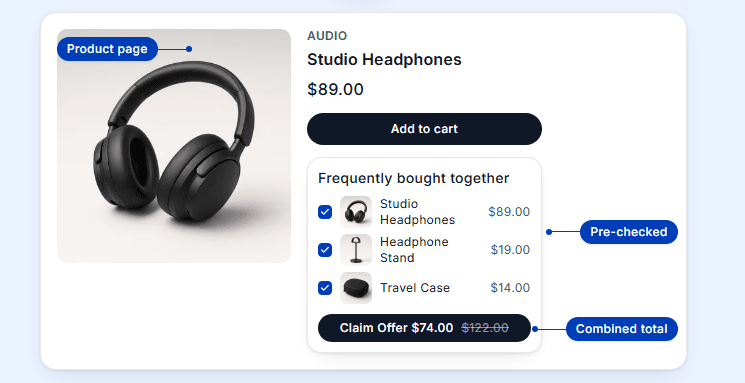
Under add to cart the customer sees recommended add-ons, each with a price, and one button for the combined total.
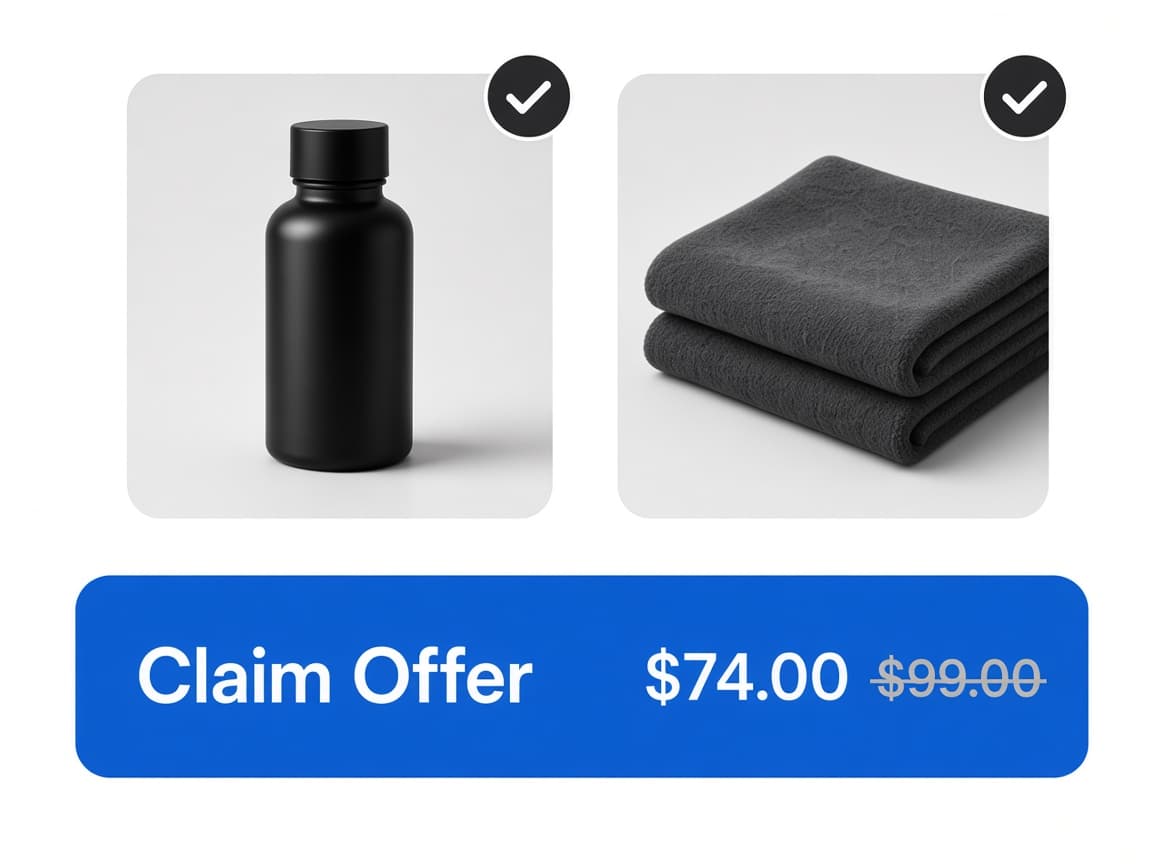
Button text can include {total} and {compared-at}. The live total updates as items are checked or unchecked.
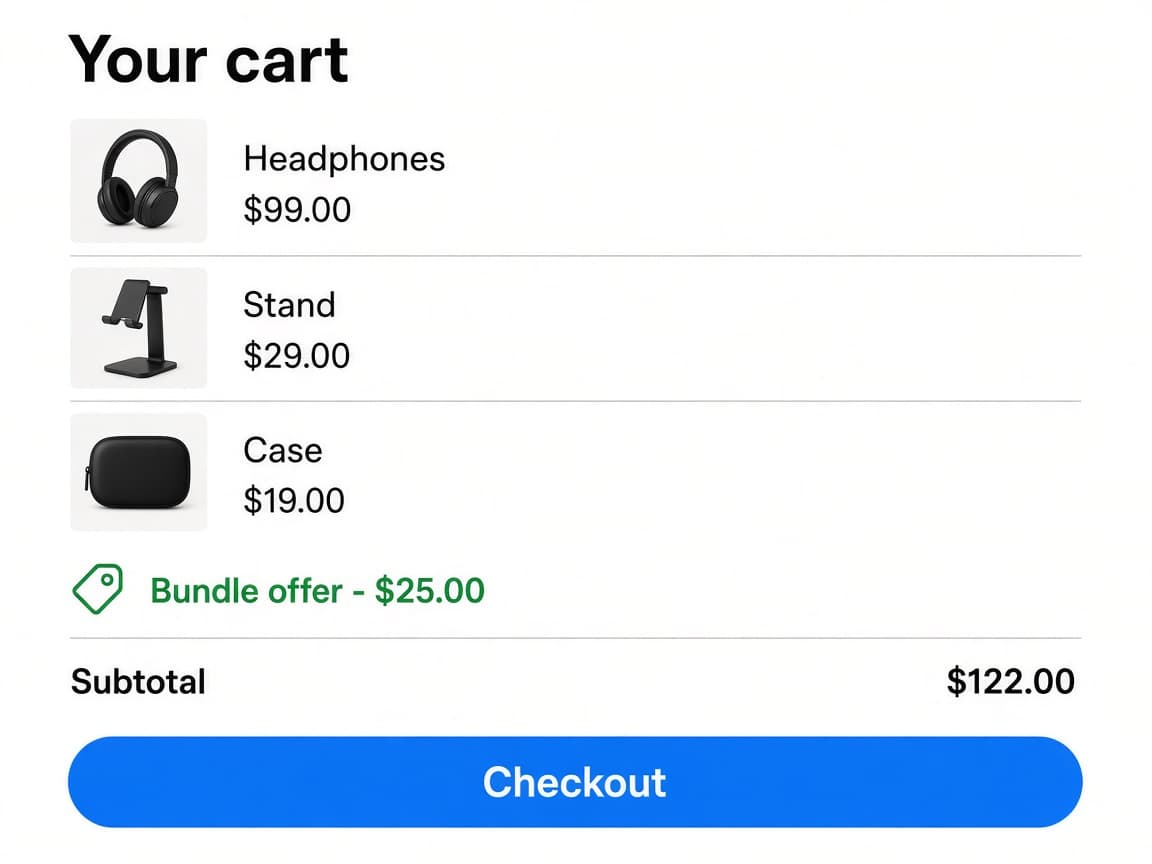
Selected products go into the cart together. Your Discount Name appears as a line on the cart and at checkout.
Flexible controls to shape how your bundle works, looks, and feels.
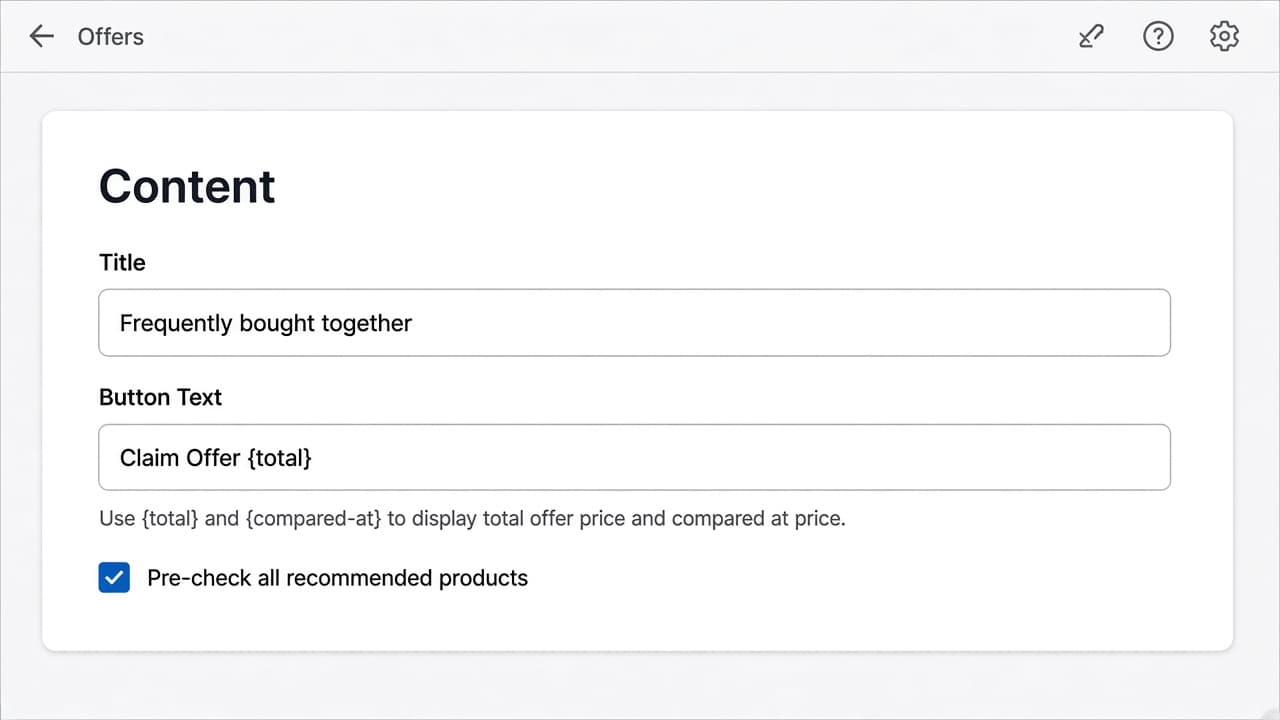
Button Text accepts {total} and {compared-at}. {total} is the discounted bundle price. {compared-at} is the sum before the discount. The customer sees both on the button, not after they reach the cart.
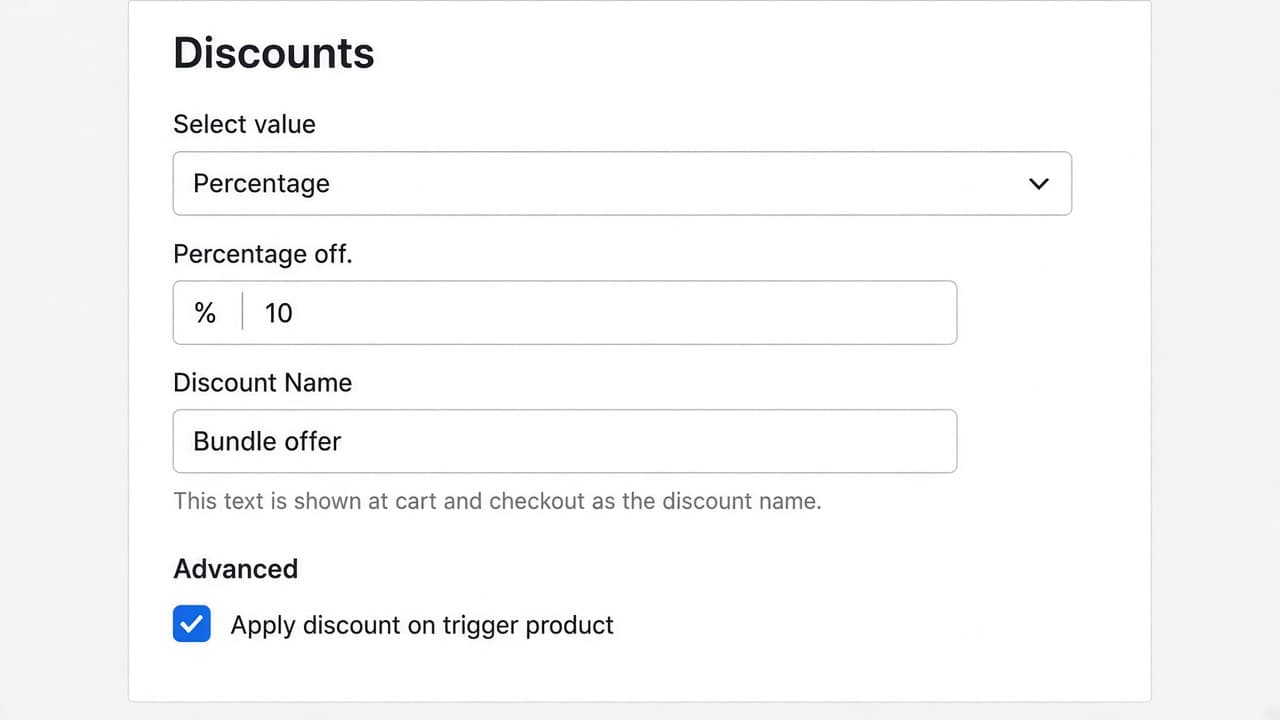
Frequently Bought Together is the offer type that can include the product the customer is already viewing, not only the add-ons. Turn on Apply discount on trigger product under Advanced. The cut is a Function discount, so it shows on the cart and at checkout under your Discount Name.
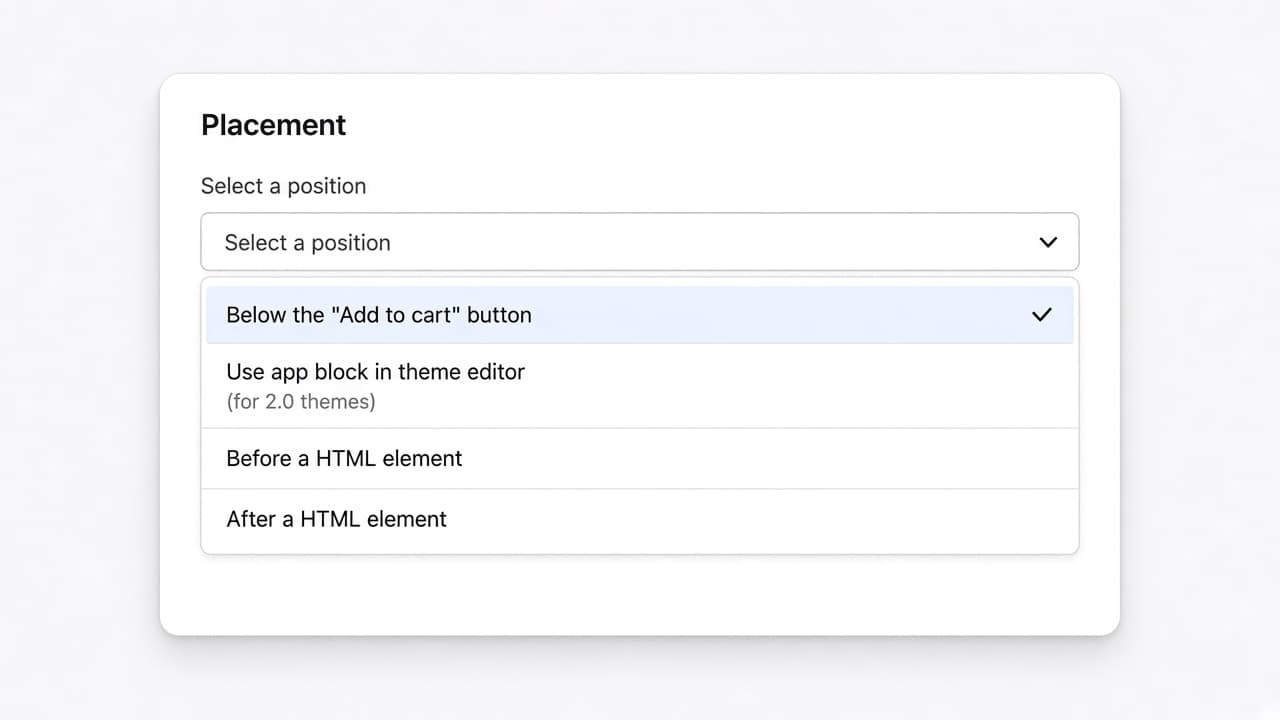
Select a position in Placement. Below the Add to cart button is for native Shopify themes such as Dawn. Use app block in theme editor is for Online Store 2.0, where you drop the Frequently Bought Together block yourself. Before or after a HTML element targets a specific id when the theme needs a custom hook.
If Apply discount on trigger product is on, yes. That checkbox lives under Advanced on Frequently Bought Together only. Leave it off and the discount applies to the add-ons.
Put {total} in Button Text. The widget replaces it with the combined price of every checked item. {compared-at} is the sum before the discount. Both update when a customer unchecks an add-on.
Below the Add to cart button on native Shopify themes, inside the Frequently Bought Together app block you place in the theme editor, or before or after an element you name by HTML id.
Yes, unless you turn off Pre-check all recommended products. Customers can still uncheck anything they do not want before they tap Claim Offer.
Through a Shopify Function. The Discount Name you set is what appears on the cart and at checkout. The customer does not enter a code.
Create the offer in RevenueLift, set the combined total on the button, and publish.