
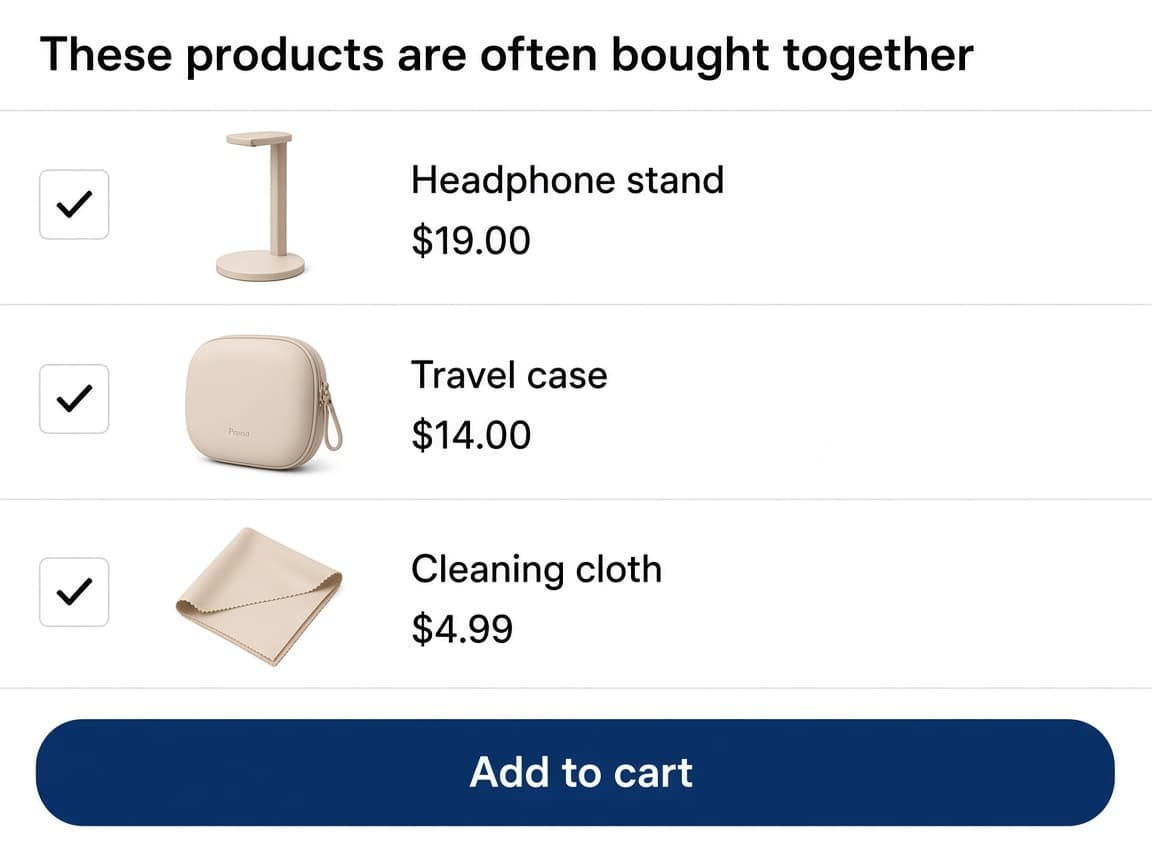
The extras sit above add to cart
On the product page the add-ons list appears above your theme's Add to cart button. Customers pick extras without leaving the product they are already buying.
Product page
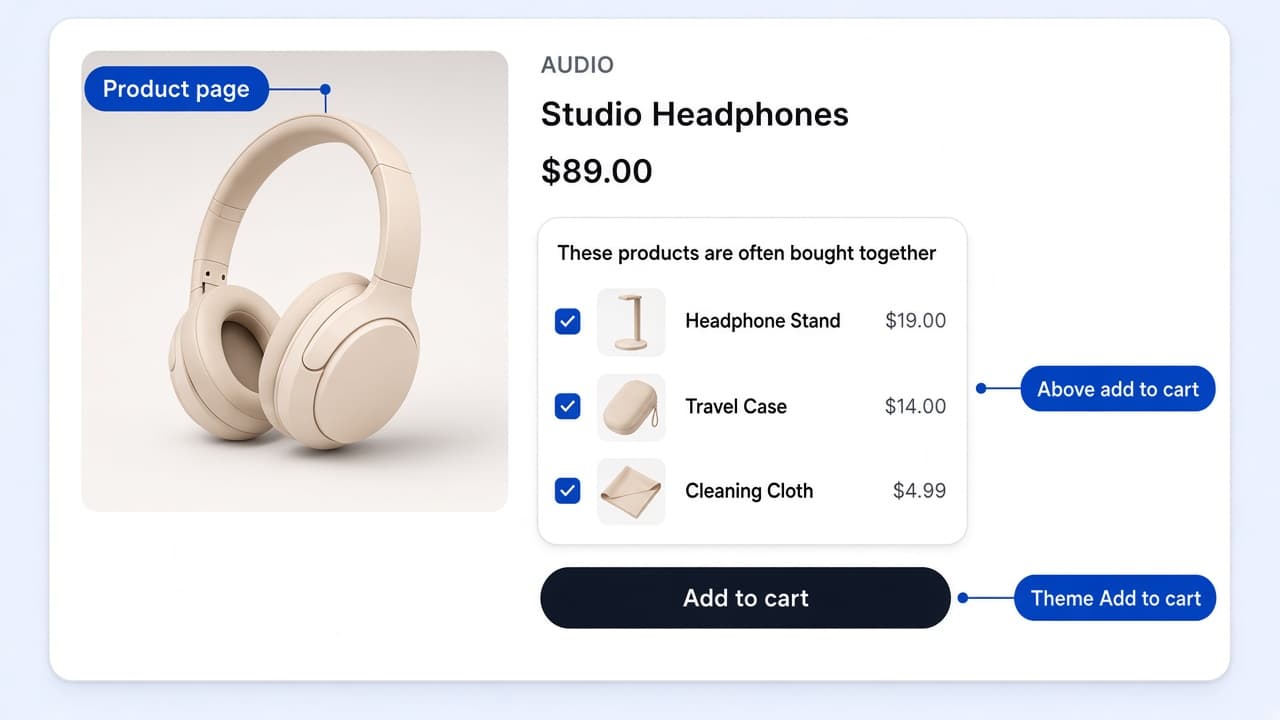
On the product page the add-ons list appears above your theme's Add to cart button. Customers pick extras without leaving the product they are already buying.
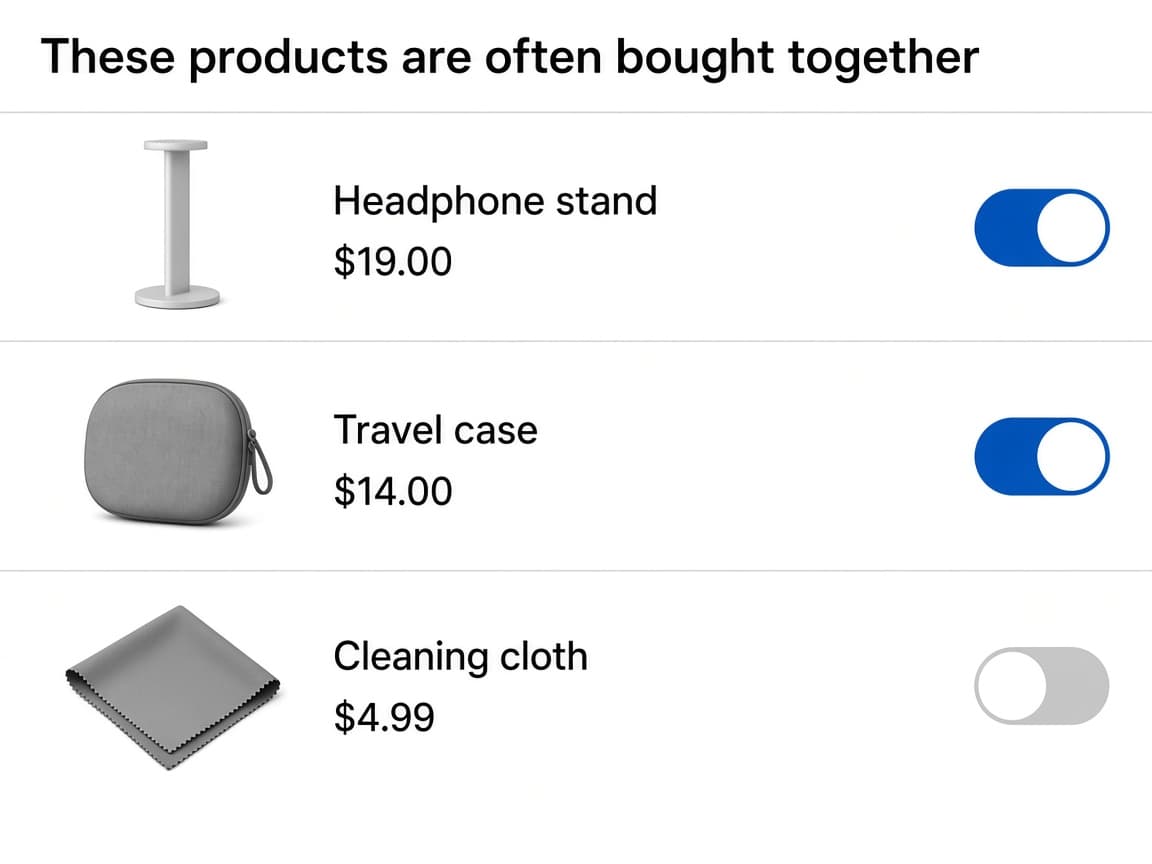
Selection type is Checkbox or On/Off Switch. Customers turn extras on or off. Pre-check is off by default, so nothing is selected until they choose it.
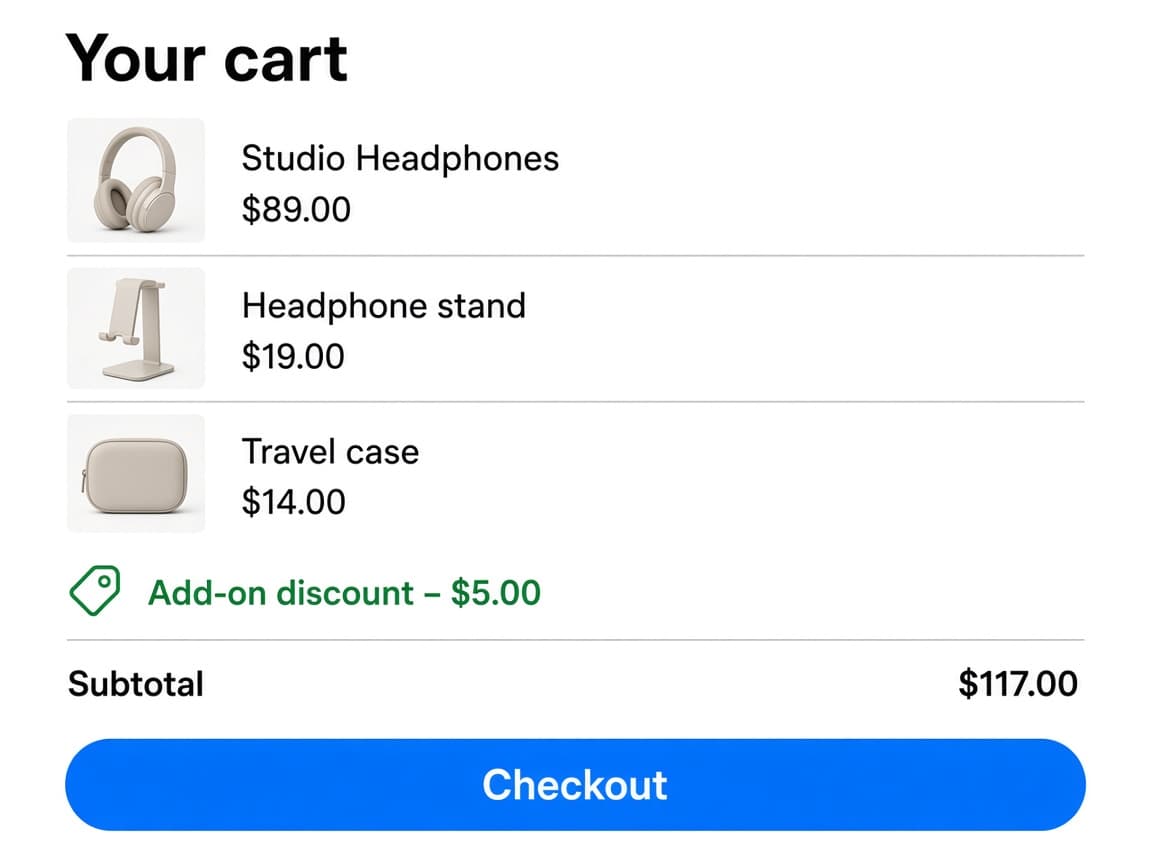
There is no Claim Offer button. When the customer taps your theme's Add to cart, the selected add-ons go into the cart with the main product.
Three controls that hitch extras to your theme Add to cart, find that button, and choose how customers opt in.
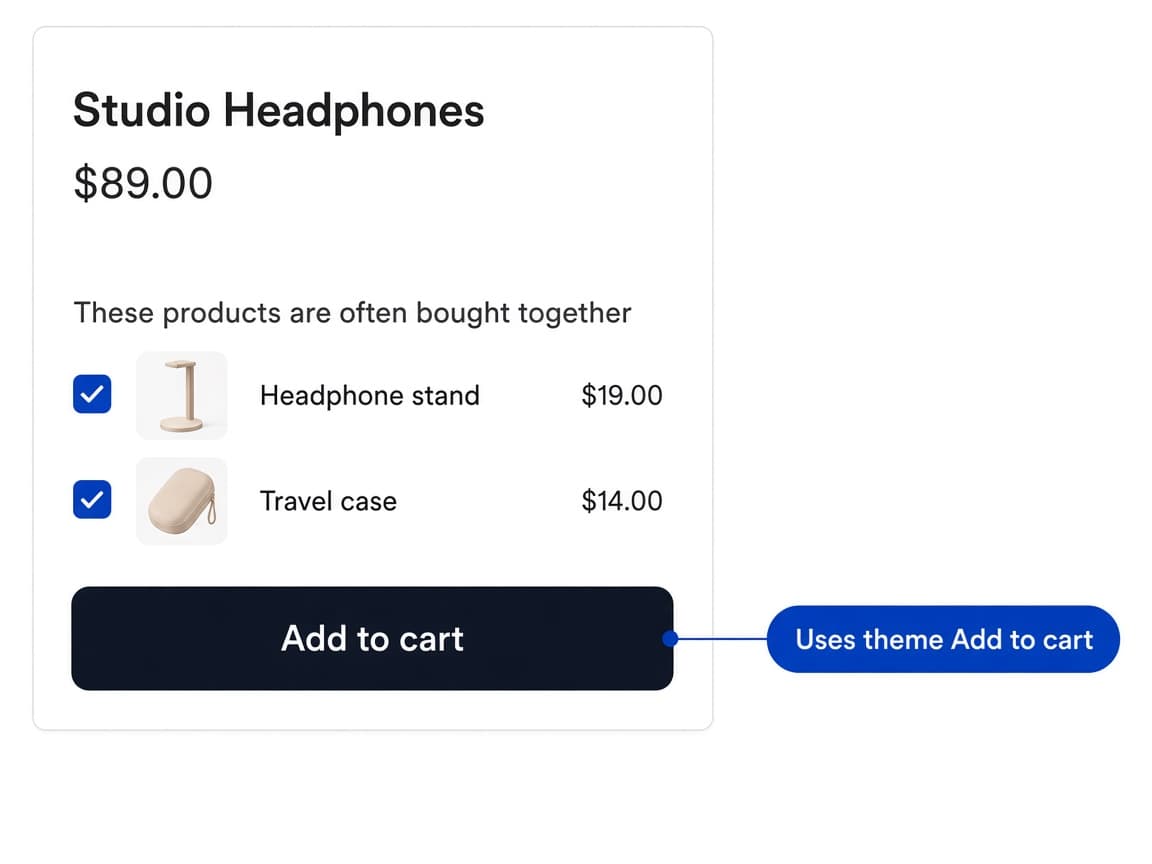
Product Add-Ons does not render its own claim button. Selected extras attach to the product page Add to cart control. One tap adds the main product and every extra that is on.
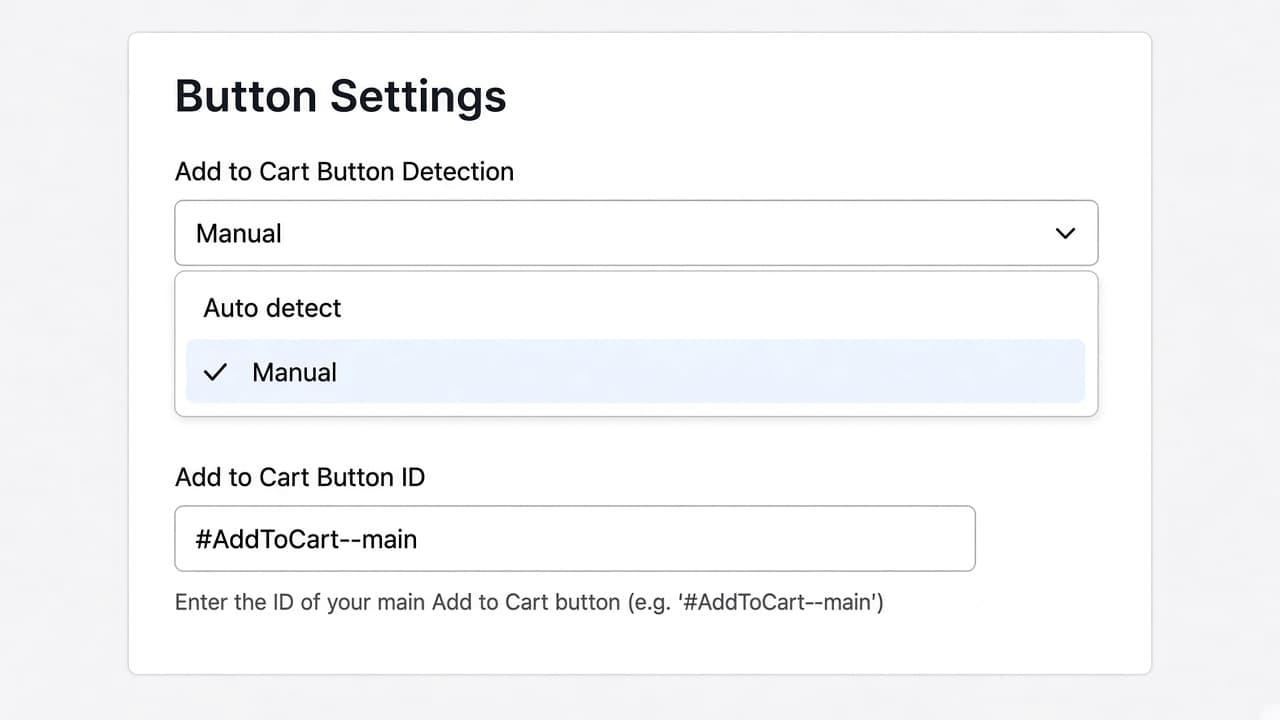
Under Button Settings, Add to Cart Button Detection is Auto detect by default, which is enough on native Shopify themes. If the extras are not added, switch to Manual and enter the Add to Cart Button ID, such as #AddToCart--main.
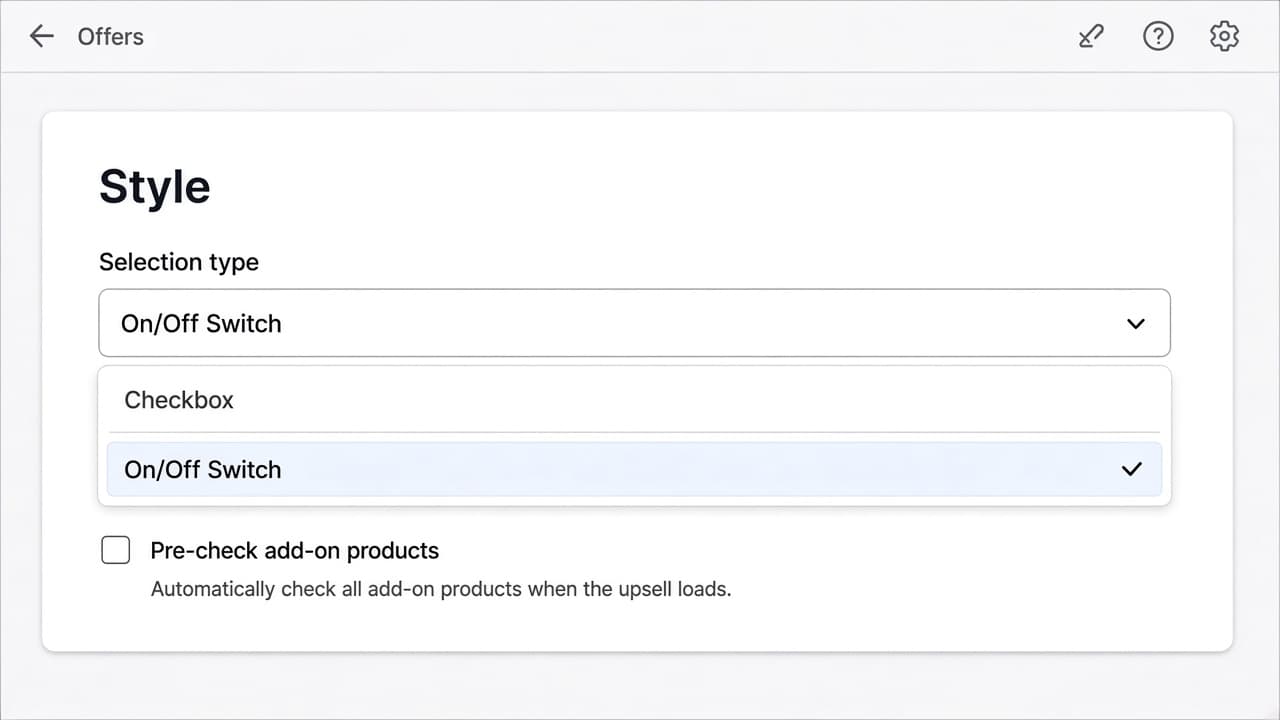
Selection type in Style is Checkbox or On/Off Switch. Checkboxes match a compact stacked list. Switches read more like optional extras. Pre-check add-on products is off unless you turn it on.
Frequently Bought Together sits below add to cart and uses a Claim Offer button with a combined total. Product Add-Ons sits above add to cart, uses your theme's Add to cart button, and has no claim button.
No. Selected extras hitch to the theme Add to cart button. One tap adds the main product and every extra that is on.
Switch Add to Cart Button Detection to Manual and enter the button's HTML id, for example #AddToCart--main. On native Shopify themes, Auto detect is usually enough.
Above the Add to cart button on native Shopify themes, inside the Product Add-Ons app block you place in the theme editor, or before or after an element you name by HTML id.
Not by default. Pre-check add-on products is off unless you turn it on. Customers then opt in to each extra.
Yes. Selection type is Checkbox or On/Off Switch. Checkbox is the default. Switches are the same opt-in, drawn as an on/off control.
Through a Shopify Function. The Discount Name you set is what appears on the cart and at checkout. The customer does not enter a code.
Create the offer in RevenueLift, hitch it to your theme Add to cart, and publish.